LinkedIn Downloader
Fast and free all in one video downloader


Why should you learn how to download LinkedIn videos free without sign in?
Let’s cut through the noise. Most LinkedIn viewers waste hours replaying content because they don’t know how to store it safely for offline learning.
And that’s the core of this guide—you’ll learn how to download LinkedIn videos free without sign in while staying ethical, quick, and anonymous.
What makes downloading LinkedIn videos tricky without logging in?
LinkedIn uses encrypted CDN links and session tokens to protect uploaded media. This system prevents direct download links from being visible to non-logged users.
Still, several publicly available extraction methods can locate temporary download sources, letting you capture the video content without violating terms or using third-party credentials.
It’s all about knowing how to work with open-source tools and browser inspection techniques.
How can you copy a LinkedIn video link correctly?
First, navigate to the video post. Right-click on the timestamp and hit “Copy link to post.” You’ve just got the main video URL.
However, this isn’t yet the downloadable file path—it’s the viewer page, not the raw media link.
Next comes a few subtle tricks.
What are the simplest methods to extract video URLs?
Option one: use browser developer tools. Load the post, open Inspect (Ctrl + Shift + I), and switch to the Network tab. Then play the video and locate a request ending with “.mp4.” Right-click it, copy its URL, and open it in a new tab.
You can now save it directly without sign-in, depending on LinkedIn’s cache responses.
Option two: use publicly accessible downloader pages that do NOT need sign-in.
Pros:
| Cons:
|
Which trusted tools and websites can help?
You can find multiple web-based extractors that scan public LinkedIn post URLs, process the metadata, and render a temporary download button. Popular and reputable tools perform this via clean HTTPS requests without flipping user data to third parties.
Ensure your chosen service doesn’t ask for LinkedIn credentials or personal logins—it must remain anonymous and client-side.
💡 Tap to reveal a secret industry truth…
Here’s the twist: many so-called LinkedIn video downloaders are simply browser wrappers using open CDNs accessible via inspect tools. You don’t need software—just patience and observation.
How can you ensure safe browsing while downloading LinkedIn videos?
Always double-check for phishing. Real public extractors never ask for passwords, two-factor codes, or app permissions.
Use your firewall and browser’s HTTPS validation before hitting Download.
For additional peace of mind, open DevTools and inspect network calls—legitimate ones keep media files as MP4/WEBM only.
Can mobile devices do this too?
Yes. On Android, you can use Chrome or any browser that supports desktop mode and Inspect alternatives. On iOS, browsers like Alook or Firefox allow resource extraction through View Source options.
Smart trick: use screen recorders only if your organization grants it. Direct downloads always maintain better quality and sound fidelity.
What legal boundaries should you know?
Downloading any video for public redistribution requires explicit consent from the LinkedIn author.
Saving videos for offline educational or internal usage may fall under fair use in specific contexts but always verify regional copyright guidelines via copyright law references.
When unsure, credit the creator and maintain transparency in your usage.
What’s the expert workflow for consistent results?
1. Locate the desired LinkedIn post.
2. Copy the video post URL.
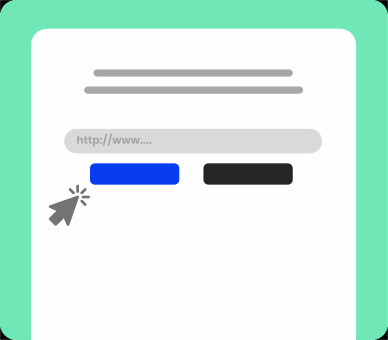
3. Paste it into your preferred downloader page with public access.
4. Verify the media quality (720p or 1080p).
5. Save directly through your browser’s right-click menu.
This entire process takes less than 60 seconds once mastered.
Is screen capture a genuine alternative?
If encryption prevents direct downloads, yes. Use high-resolution capture tools that maintain frame rates of 30fps or more for tutorials or client showcases.
Still, the native file offers better compression quality and metadata retention.
Pro Tip: Expert Insights
- Always prefer browser-based extraction over plugin usage; extensions often log sessions.
- Before downloading, open the video fully to let it buffer for smoother link recognition.
- Bookmark the downloader that consistently delivers without tracking scripts.
How does network caching impact the video availability?
LinkedIn’s cache is transient. It expires based on post visibility and CDN refresh cycles. That means older posts may no longer yield valid MP4s unless you load them again in an authenticated session.
Timing matters—grab it while it’s hot and still public.
Where can you learn more about LinkedIn media management?
You can explore in-depth tutorials, visual step-by-steps, and efficiency hacks in our extended resource.
Deepen Your Knowledge
Want to explore more of my personal tests, data, and insights on this topic?
What final checklist ensures error-free downloads?
Keep your browser updated, clear caches frequently, and verify downloaded file names. Fake URLs may redirect, so watch for MIME types ending with video/mp4.
With practice, the process becomes muscle memory.
Frequently Asked Questions
Q: Is it legal to download LinkedIn videos without signing in?
A: As long as you download for private viewing and do not redistribute, you generally remain safe. Still, always respect the content creator’s copyright.
Q: Can I use LinkedIn video downloaders on mobile?
A: Yes. Many work directly in mobile browsers supporting desktop view. Always confirm the file URL before saving to ensure integrity.